> ## Documentation Index
> Fetch the complete documentation index at: https://chainlit-5-wd-prompt.mintlify.site/llms.txt
> Use this file to discover all available pages before exploring further.
# Thread
A Thread represents a group of interactions between a user and an AI app. It can be, for example, a conversation between a human and one or several assistants, or an agent generating a document piece by piece from a user input.
A Thread is composed of [Steps](/concepts/step). A Step can be a message, or an intermediate AI step like an LLM call.
## Log a Thread
```python Python
import os
import time
from literalai import LiteralClient
client = LiteralClient(api_key=os.getenv("LITERAL_API_KEY"))
@client.step(type="run")
def my_assistant(input: str):
# Implement your assistant logic here
time.sleep(1)
response = "My assistant response"
client.message(content=response, type="assistant_message", name="Assistant")
return response
def main():
# You can also continue a thread by passing the thread id
with client.thread(name="Thread Example") as thread:
print(thread.id)
user_query = "Hello World"
client.message(content=user_query, type="user_message", name="User")
my_assistant(user_query)
# Let's say the user has a follow up question
follow_up_query = "Follow up!"
client.message(content=follow_up_query, type="user_message", name="User")
my_assistant(user_query)
main()
# Network requests by the SDK are performed asynchronously.
# Invoke flush_and_stop() to guarantee the completion of all requests prior to the process termination.
# WARNING: If you run a continuous server, you should not use this method.
client.flush_and_stop()
```
```typescript TypeScript
import { LiteralClient, Thread } from '@literalai/client';
const client = new LiteralClient(process.env['LITERAL_API_KEY']);
async function myAssistant(thread: Thread, query: string) {
const run = thread.step({
type: "run",
name: "My Assistant",
input: { content: query },
});
// Implement your assistant logic here
await new Promise((r) => setTimeout(r, 1000));
const response = { content: "My assistant response" };
run.output = response;
await run.send();
await run
.step({
type: "assistant_message",
name: "Assistant",
output: response,
})
.send();
}
async function main() {
// You can also continue a thread by passing the thread id
const thread = await client.thread({ name: "Thread Example" }).upsert();
console.log(thread.id);
const userQuery = "Hello World";
thread
.step({
type: "user_message",
name: "User",
output: { content: userQuery },
})
.send();
await myAssistant(thread, userQuery);
const followUpQuery = "Follow up!";
thread
.step({
type: "user_message",
name: "User",
output: { content: followUpQuery },
})
.send();
await myAssistant(thread, userQuery);
}
main()
.then(() => process.exit(0))
.catch((error) => console.error(error));
```
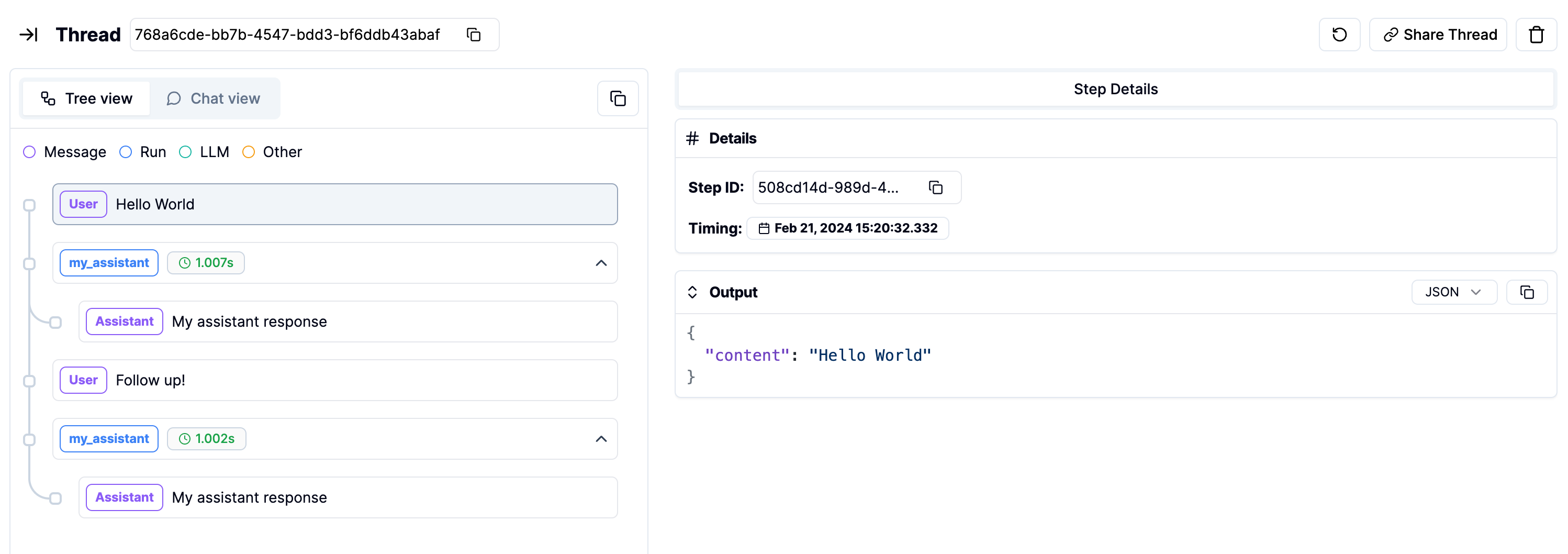
## Visualize the Thread on Literal
Navigate to the `Threads` page on the platform to see the thread you just created.